


Cloud Storage Backup & Drive
4.2248.00 Reviews
App Specs
- Version
- 1.7.8
- Updated On
- License
- Free
- Downloads
- 1,000,000+
- Developer
- Daily Utility Apps
- Categories
- Productivity
- Platform
- Android
Screenshots
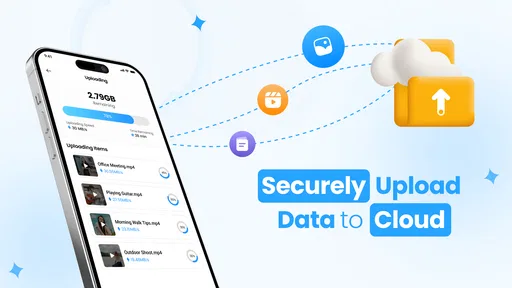
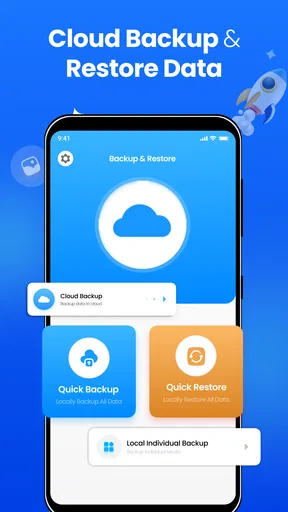
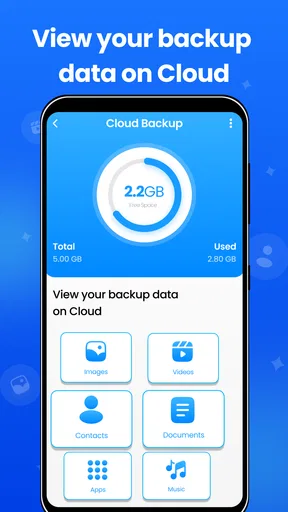
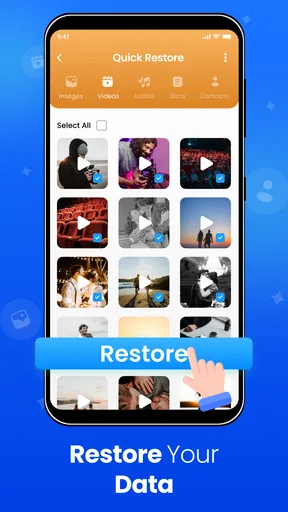
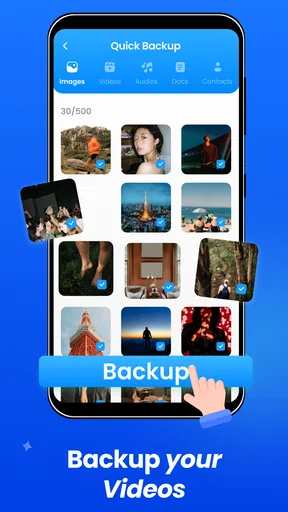
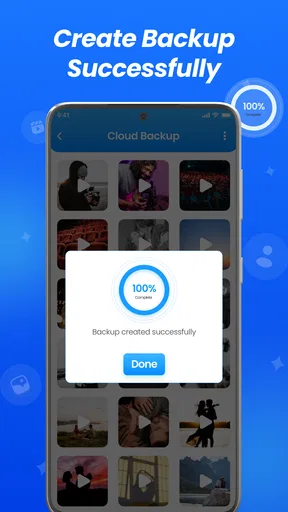
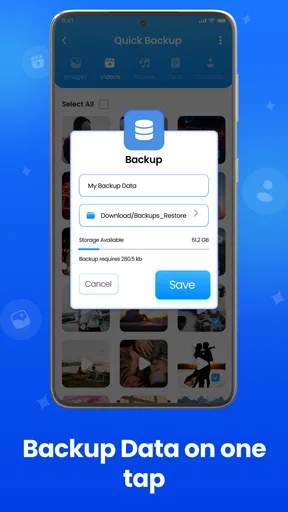
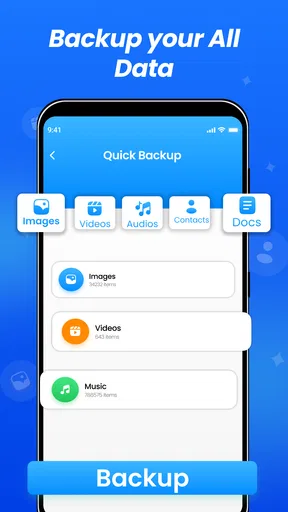
 Analysis by AppCompare
If you’re trying cloud backup for the first time, the most useful way to judge Cloud Storage Backup & Drive is not by how many buttons it has, but by whether it helps you protect something you would genuinely miss. I’d start with a small, important set of files rather than moving everything at once. That makes the first session easier to understand and gives you a chance to see how the app fits your routine.
What to expect from a cloud drive
This is a productivity app from Daily Utility Apps, aimed at keeping everyday phone data accessible beyond the device itself. Its focus is backup for files, photos, videos, and contacts. That makes it a practical option for someone who wants a place for personal essentials, rather than a full office suite or a specialist photo-editing tool.
The app is free to install and is rated for Everyone. It has a 4.5 average from around 9,900 ratings and more than a million installs, so it has attracted a substantial audience. The current version is 1.7.0, and the app first arrived in December 2019. Optional in-app purchases range from $0.49 to $499.99 per item, so I’d check the purchase details carefully before paying for anything; a wide range does not tell you by itself which option suits your needs.
For a new user, the key distinction is between a backup and a working folder. A backup is there to give you another copy if your phone is lost or damaged. A drive can also be used to reach files from more than one device, but that does not automatically mean every change behaves like a live shared document. I would treat the app as a way to preserve and retrieve useful items, and confirm the behavior of any particular file before relying on it for a time-sensitive workflow.
A calmer first setup
When you open the app, take a moment to understand its prompts before accepting them. If it asks to connect a category of personal data, consider whether you want that category included in your backup. Photos and contacts can be especially personal; it is reasonable to begin with only what you actually want available in the cloud, then broaden the selection later if the process feels right.
Rather than trying to back up your entire phone immediately, choose a few items you can recognize: perhaps a document you need for an appointment, a short video you want to keep, and a small group of important contacts. This gives you a manageable test. It also makes it easier to notice whether a file has appeared where you expect it, instead of assuming that a large first upload has completed correctly.
Before a sizeable upload, I’d use a reliable connection and leave enough time for it to finish. That is a sensible habit for any cloud drive, especially with videos, which can take longer to transfer than a contact or a small document. If you are setting the app up while away from home, begin with one modest file and save a larger transfer for when you have a steadier connection.
Worth Reading Before You Choose

EA SPORTS FC Mobile 26 Is a Bigger Football Game, but It Takes Time

Flipboard Shows What News Apps Must Do Beyond the Feed

Switching to Android Auto Means Rethinking Your Driving Routine

Google Calendar Makes a Crowded Week Easier to Manage

Ludo King Makes the Most of the Minutes Between Plans

Baby Panda World Brings Quick Play to Modern Phones, but Its Game Library Feels Busy
Your first successful backup
My preferred first win would be one file that matters but is easy to verify. Upload a document, then look for it in the drive and check that you can open or retrieve it. That small round trip answers a more useful question than simply seeing a backup button: can you find the item again when you need it? Once you have confirmed that, add other files in sensible groups, such as household paperwork or memories you do not want to leave only on your phone.
A realistic routine might be to save a scan of a warranty or a travel document after receiving it, then make sure it is present in the cloud before putting the paper away. For contacts, you could start by checking that a few important entries are included rather than assuming every address-book detail has been captured. That kind of spot-checking takes a little effort, but it helps prevent the false comfort of thinking “backed up” means “verified.”
For photos and videos, it can help to think in terms of value rather than volume. A few irreplaceable family clips may deserve attention before a large collection of screenshots or duplicate images. This is one of the trade-offs with any storage service: sending everything can be convenient, but it may make it harder to find the items you care about and may lead you to consider paid storage sooner.
First Impressions and Getting Started
Jumping into the Cloud Storage Backup & Drive app was refreshingly straightforward. The interface is clean and intuitive, which is always a huge plus in my book. I didn’t have to fumble around to find where things were. Everything is laid out in a way that feels almost second nature. Setting up my account took just a couple of minutes, and soon I was all set to explore what this app had to offer.
Once you're in, the app offers a handy walkthrough of its main features, which I found quite helpful. It's like having a friendly guide showing you around. You can tell that the developers put a lot of thought into making the user experience as smooth as possible.
Features That Stand Out
One of the first things that caught my eye was the automatic backup feature. This is a game-changer! Imagine not having to worry about backing up your files manually. The app takes care of it for you, syncing all your data seamlessly. Whether it's photos, videos, or documents, you can rest easy knowing everything is safe in the cloud.
Another feature I absolutely love is the cross-platform support. I can access my files from my phone, tablet, or computer without any hassle. This flexibility means I can start working on a document on my phone and finish it on my laptop without missing a beat. Talk about convenience!
The app also offers a generous amount of free storage space, which is perfect if you're just starting and don't want to commit to a paid plan right away. And if you ever need more space, upgrading is simple and reasonably priced.
Performance and Usability
In terms of performance, the app runs like a dream. Uploading and downloading files is quick and efficient, even when dealing with larger files. I didn't experience any annoying lags or crashes, which is often a concern with storage apps.
The search functionality is another highlight. It's fast and accurate, allowing me to locate files in a snap. Whether you're a neat freak like me or someone with a more "creative" filing system, finding your data is a breeze.
Security and Peace of Mind
Security is always a big concern when it comes to cloud storage, and I'm happy to report that the app doesn't skimp here. It uses robust encryption to ensure that your files are safe from prying eyes. Plus, you can enable two-factor authentication for an added layer of security. Knowing my data is protected gives me that extra peace of mind.
Additionally, the app provides regular security updates, so you know it's always up-to-date with the latest protection measures.
Common points worth checking
One thing I would not assume is that every kind of backup works in exactly the same way. A copy in a cloud drive is useful, but it is not necessarily a complete mirror of a phone: app settings, message histories, or other device data are separate concerns unless the app explicitly includes them. If you are preparing to replace a phone, keep any other backup method you rely on in place until you have confirmed that the specific information you need is available here.
I would also distinguish between having a file in the cloud and having it available offline. Cloud access is valuable when you have a connection, while a local copy can matter on a plane, in a basement, or during a weak-signal commute. For something you must present at a particular moment, download or otherwise make it accessible in advance and test it before leaving. That simple habit avoids discovering a connection problem at the worst possible time.
Storage costs are another point to approach carefully. The app can be tried without an upfront purchase, but its in-app purchase range is broad. I would first identify what you need to keep, review the available purchase terms inside the app, and decide whether the amount and duration make sense for you. If your collection is mostly large videos, compare the likely ongoing cost with the cloud service you already use; if it is a handful of documents and contacts, a paid tier may not be necessary for your routine.
Where it fits among alternatives
Compared with keeping everything only on a phone, a cloud copy gives you a route to retrieve selected items if the device is unavailable. Compared with a computer or external drive, it is more convenient for reaching files away from home, while a physical copy can be useful when internet access is unreliable. I see the strongest approach as choosing based on the risk: use cloud access for convenience, and keep another copy of truly irreplaceable material if losing access would cause serious trouble.
It is also worth separating this app’s role from that of a dedicated file-sync service or a document collaboration platform. If your priority is editing the same file with coworkers and tracking revisions, choose a tool built around that workflow. If you want an approachable place to back up personal files, photos, videos, and contacts, this app is closer to the job. Its appeal is simplicity; users who need detailed controls, a carefully managed archive, or a complex team workflow may prefer a more specialized alternative.
A small organizational trick can make a real difference: use clear, consistent names before uploading important documents. “Insurance” or “Trip” is easier to search than a camera-generated filename, especially months later. For recurring paperwork, a simple naming pattern with the subject and date can help you distinguish a current copy from an older one without needing to remember exactly when you uploaded it.
Who will get the most from it
I’d recommend giving it a look if you are new to cloud storage and want to protect a manageable collection without learning a complicated system first. It also makes sense for someone who moves between a phone and another device and wants personal files within reach. A first-time user can keep the task small: protect a few useful items, verify they can be retrieved, and only then decide whether a broader backup routine is worthwhile.
On the other hand, I would skip it as your sole safety net if you need a fully documented device-migration plan, strict control over sensitive work records, or guaranteed access in places with no connection. It may also be a poor fit if you already have a cloud service that handles your contacts and photos in a way you understand and prefer. Running multiple backup systems without knowing which one has the latest copy can create confusion rather than extra reassurance.
For a busy day, picture receiving a form by email while you are away from your desk. You save a copy to the drive, later check that it is there, and retrieve it from another device when you need to fill it out. The useful part is not merely the upload; it is knowing where the file lives and having tested the route back to it. I would make that check part of the first few uses, then settle into a routine that does not depend on memory alone.
Final Thoughts
So, is the Cloud Storage Backup & Drive app worth your time? In my opinion, absolutely. Its user-friendly design, powerful features, and commitment to security make it a top contender in the world of cloud storage apps. Whether you're a casual user or someone who relies heavily on cloud storage, this app has something to offer.
If you've been on the fence about finding a reliable cloud storage solution, give this app a try. It might just become your new best friend in the digital world. And remember, nothing feels better than knowing your precious data is safe and sound!
Pros
- Easy-to-use interface
- ideal for beginners.
- Supports multiple file formats seamlessly.
- Automatic backup scheduling options available.
- High-level encryption ensures data security.
- Cross-platform compatibility enhances usability.
Cons
- Limited free storage can fill up quickly.
- Upload speeds may vary with large files.
- No offline access to files without download.
- Some features locked behind a paywall.
- Occasional sync issues noted by users.
FAQs for Cloud Storage Backup & Drive
What are the main features of Cloud Storage Backup & Drive?
Cloud Storage Backup & Drive offers secure cloud storage, automatic backup, file syncing across devices, and easy sharing options. It supports various file types and provides robust encryption to ensure your data is protected. Additionally, the app includes a user-friendly interface and integrates seamlessly with other productivity tools.
How secure is my data with Cloud Storage Backup & Drive?
The app uses advanced encryption protocols to protect your data both during transfer and while stored on their servers. Two-factor authentication adds an extra layer of security, ensuring only authorized users can access the stored information. Regular security audits are conducted to maintain high safety standards.
Is Cloud Storage Backup & Drive compatible with other platforms?
Yes, Cloud Storage Backup & Drive is designed to be cross-platform, meaning it works efficiently on both Android and iOS devices. It also offers desktop clients for Windows and macOS, enabling seamless synchronization and access to your files across all your devices, regardless of the operating system.
How much storage space is available with Cloud Storage Backup & Drive?
The app offers various storage plans to cater to different user needs. It typically starts with a free tier providing a limited amount of space, which can be expanded through paid subscriptions. These plans are flexible, allowing users to choose the amount of storage that best suits their requirements.
Can I share files easily using Cloud Storage Backup & Drive?
Yes, the app simplifies file sharing with intuitive options for sending links or directly sharing files with others. You can set permissions to control viewing or editing rights, and even set expiration dates for shared links to maintain control over your shared content. This makes collaboration straightforward and secure.


